> ## Documentation Index
> Fetch the complete documentation index at: https://docs.monime.io/llms.txt
> Use this file to discover all available pages before exploring further.
# Creating a Monime Space
> Step-by-step guide to setting up your business account (Monime Space)
A **Monime Space** is your dedicated business account on the Monime platform. It allows you to accept payments, manage transactions, and oversee your business's financial operations.
**Prerequisite**: You must have a verified [Monimeer
account](/dashboard-guide/create-an-account) before creating a Space.
## Creating Your Space
### Method 1: From Your Dashboard
Log in to your Monimeer Dashboard at [my.monime.io](https://my.monime.io)
Locate the "Create a space" section and click the **New Space** button
 ### Method 2: Direct Navigation
You can also navigate directly to the Space creation interface by visiting: [my.monime.io/space-board](https://my.monime.io/space-board)
### Method 2: Direct Navigation
You can also navigate directly to the Space creation interface by visiting: [my.monime.io/space-board](https://my.monime.io/space-board)
 ## Space Configuration
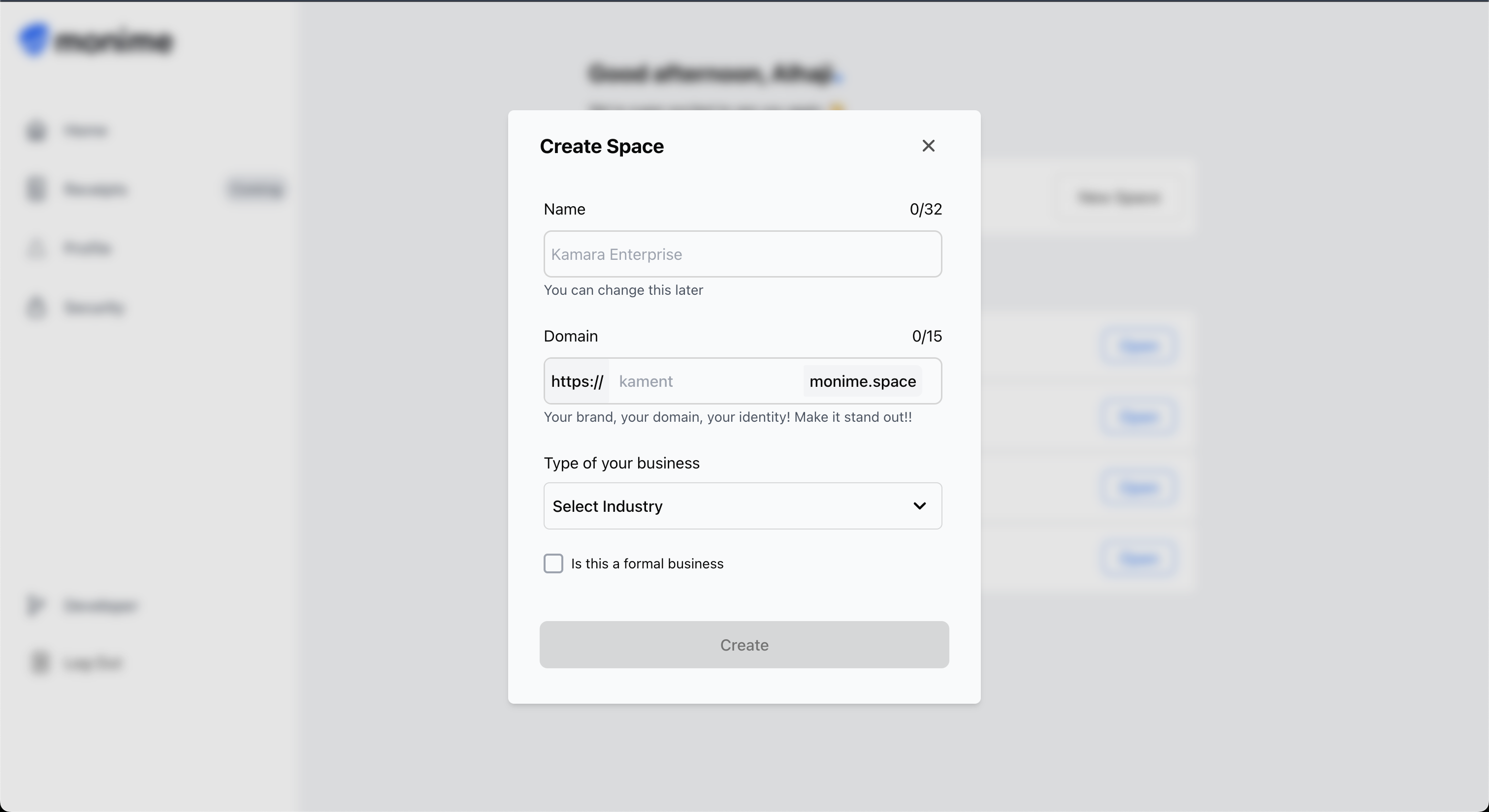
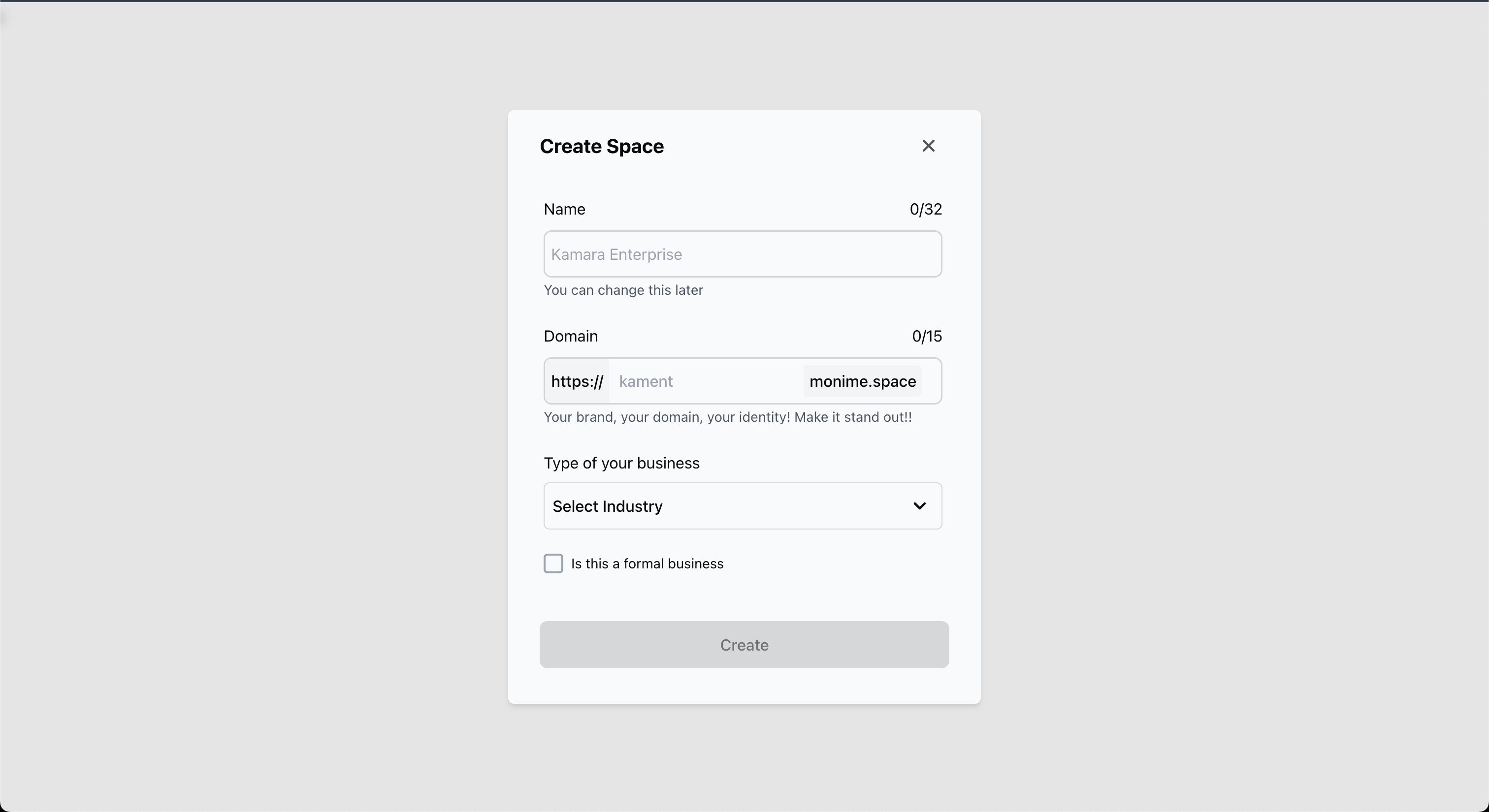
Fill out the "Create Space" dialog with your business information:
**Purpose**: The full, formal name of your business or venture
**Requirements**:
* Maximum 32 characters
* Will be used for official identification within Monime
* Can be changed later if needed
**Example**: "Kamara Enterprise", "Potter's Food Joint"
{" "}
**Purpose**: A unique, short identifier for your payment URL **Requirements**:
* Maximum 15 characters - Must be unique across the platform - Forms your
payment link: `https://[your-alias].monime.space` **Example**: If you enter
'kamara', your payment link becomes `https://kamara.monime.space/payments`
Choose carefully! While you can change this later, it will affect your
existing payment links.
{" "}
**Purpose**: Helps Monime categorize your business for relevant features and
support Select from the dropdown menu: - Retail - Food & Beverage - Services -
Technology - Healthcare - Education - And more...
**Purpose**: Indicates whether your business is formally registered
**Check this box if**:
* Your business is registered with Corporate Affairs Commission
* You have official business registration documents
* You operate as a formal entity
**Leave unchecked if**:
* Informal venture or sole proprietorship
* Not formally registered with authorities
Ensure all information is accurate as it will be used for your business
identification and compliance purposes.
Click the **Create** button when all fields are completed.
## Space Creation Process
After clicking **Create**, you'll see a loading screen indicating that Monime is setting up your Space.
Please remain on the page while your Space is being created. This process
typically takes only a few moments.
## Setting Your Space PIN
Once your Space is created, you'll be prompted to create a **4-digit PIN** for security.
## Space Configuration
Fill out the "Create Space" dialog with your business information:
**Purpose**: The full, formal name of your business or venture
**Requirements**:
* Maximum 32 characters
* Will be used for official identification within Monime
* Can be changed later if needed
**Example**: "Kamara Enterprise", "Potter's Food Joint"
{" "}
**Purpose**: A unique, short identifier for your payment URL **Requirements**:
* Maximum 15 characters - Must be unique across the platform - Forms your
payment link: `https://[your-alias].monime.space` **Example**: If you enter
'kamara', your payment link becomes `https://kamara.monime.space/payments`
Choose carefully! While you can change this later, it will affect your
existing payment links.
{" "}
**Purpose**: Helps Monime categorize your business for relevant features and
support Select from the dropdown menu: - Retail - Food & Beverage - Services -
Technology - Healthcare - Education - And more...
**Purpose**: Indicates whether your business is formally registered
**Check this box if**:
* Your business is registered with Corporate Affairs Commission
* You have official business registration documents
* You operate as a formal entity
**Leave unchecked if**:
* Informal venture or sole proprietorship
* Not formally registered with authorities
Ensure all information is accurate as it will be used for your business
identification and compliance purposes.
Click the **Create** button when all fields are completed.
## Space Creation Process
After clicking **Create**, you'll see a loading screen indicating that Monime is setting up your Space.
Please remain on the page while your Space is being created. This process
typically takes only a few moments.
## Setting Your Space PIN
Once your Space is created, you'll be prompted to create a **4-digit PIN** for security.
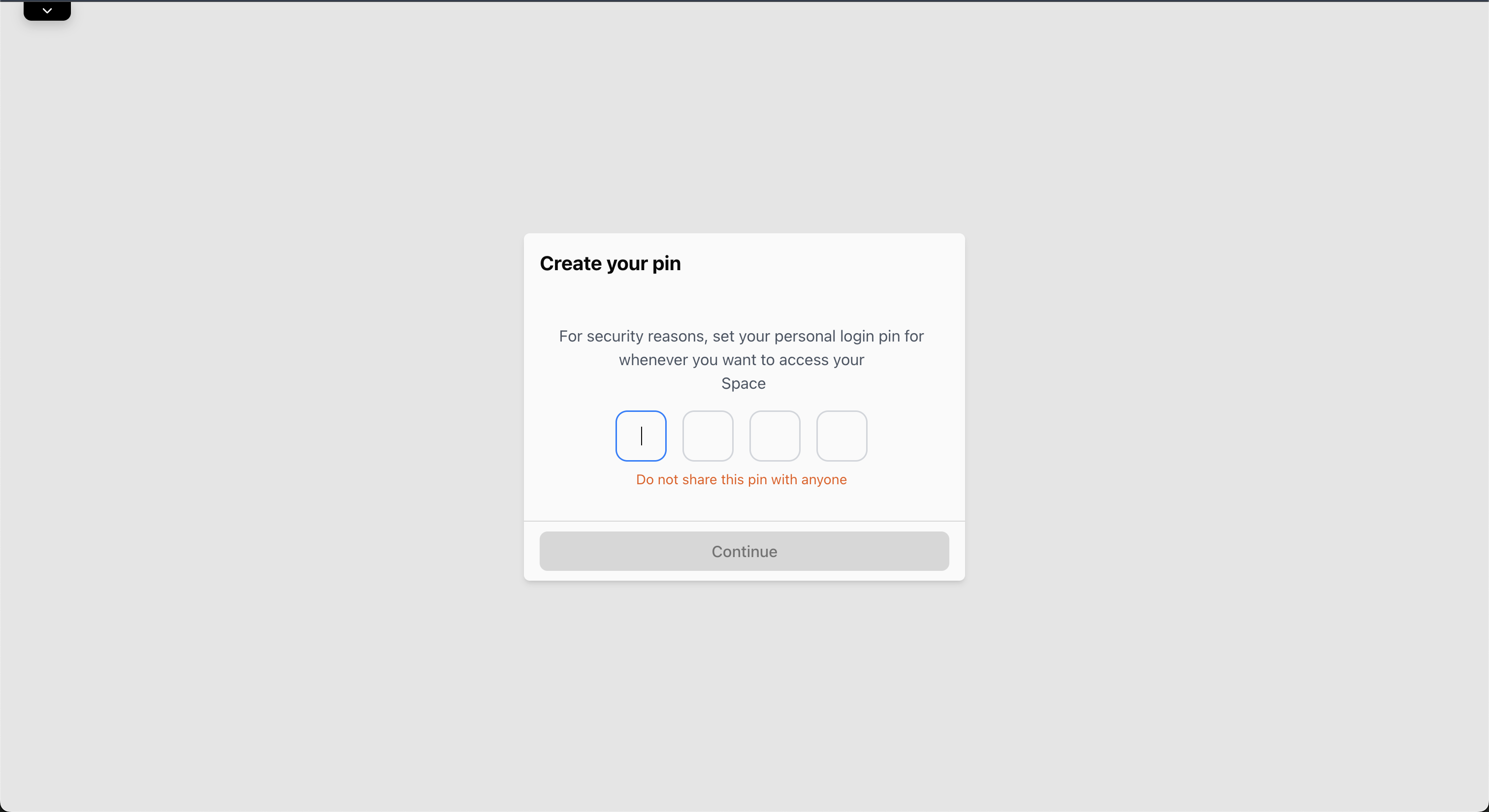 Enter a new 4-digit PIN that you'll remember. This PIN will be used to authorize
sensitive actions within your Space.
Enter a new 4-digit PIN that you'll remember. This PIN will be used to authorize
sensitive actions within your Space.
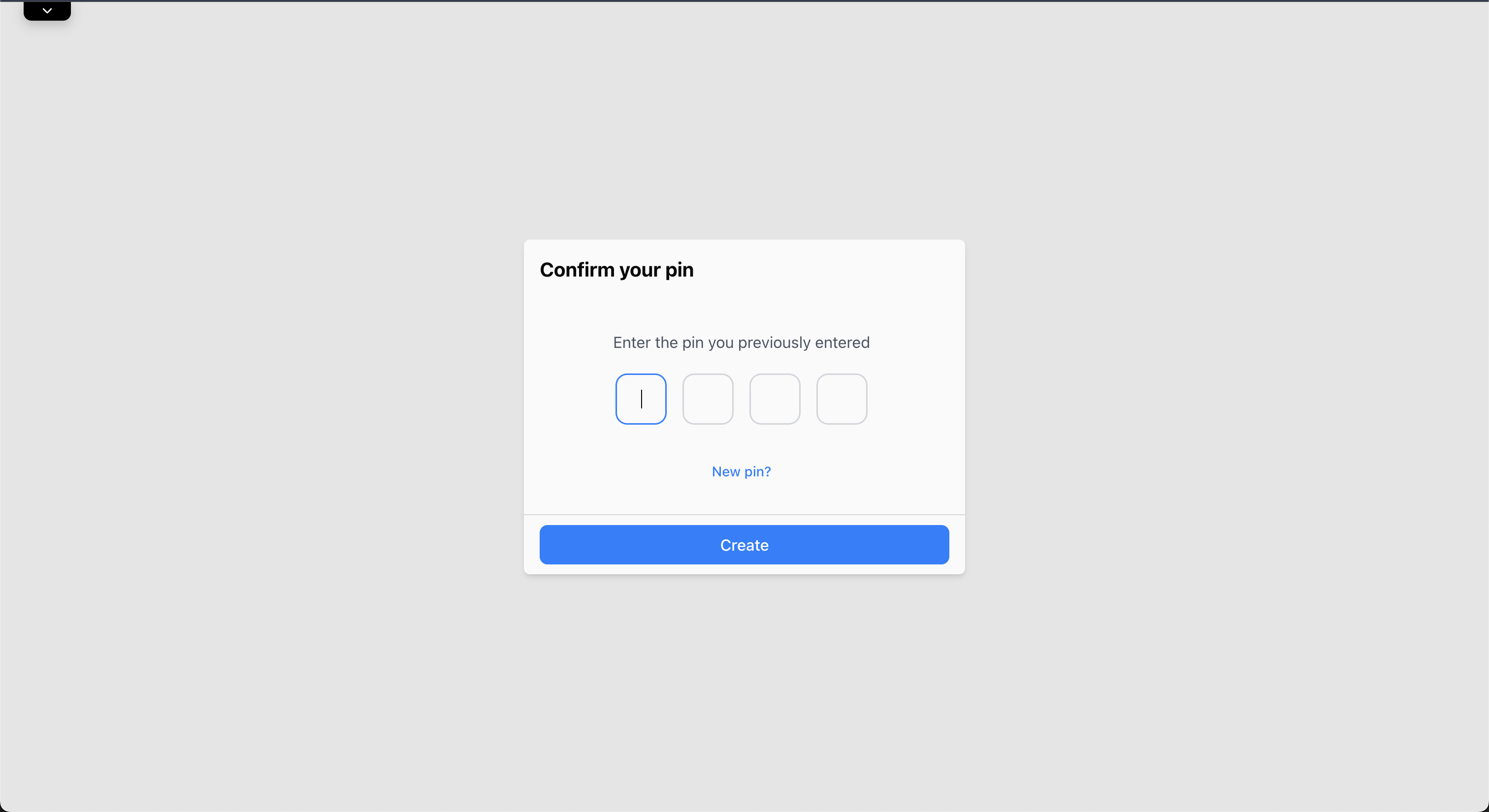 Re-enter the same 4-digit PIN to confirm it and ensure there are no typos.
Choose a PIN that is strong but easy for you to recall, and keep it
confidential. You'll need this PIN for sensitive operations in your Space.
## Accessing Your Space Dashboard
Re-enter the same 4-digit PIN to confirm it and ensure there are no typos.
Choose a PIN that is strong but easy for you to recall, and keep it
confidential. You'll need this PIN for sensitive operations in your Space.
## Accessing Your Space Dashboard
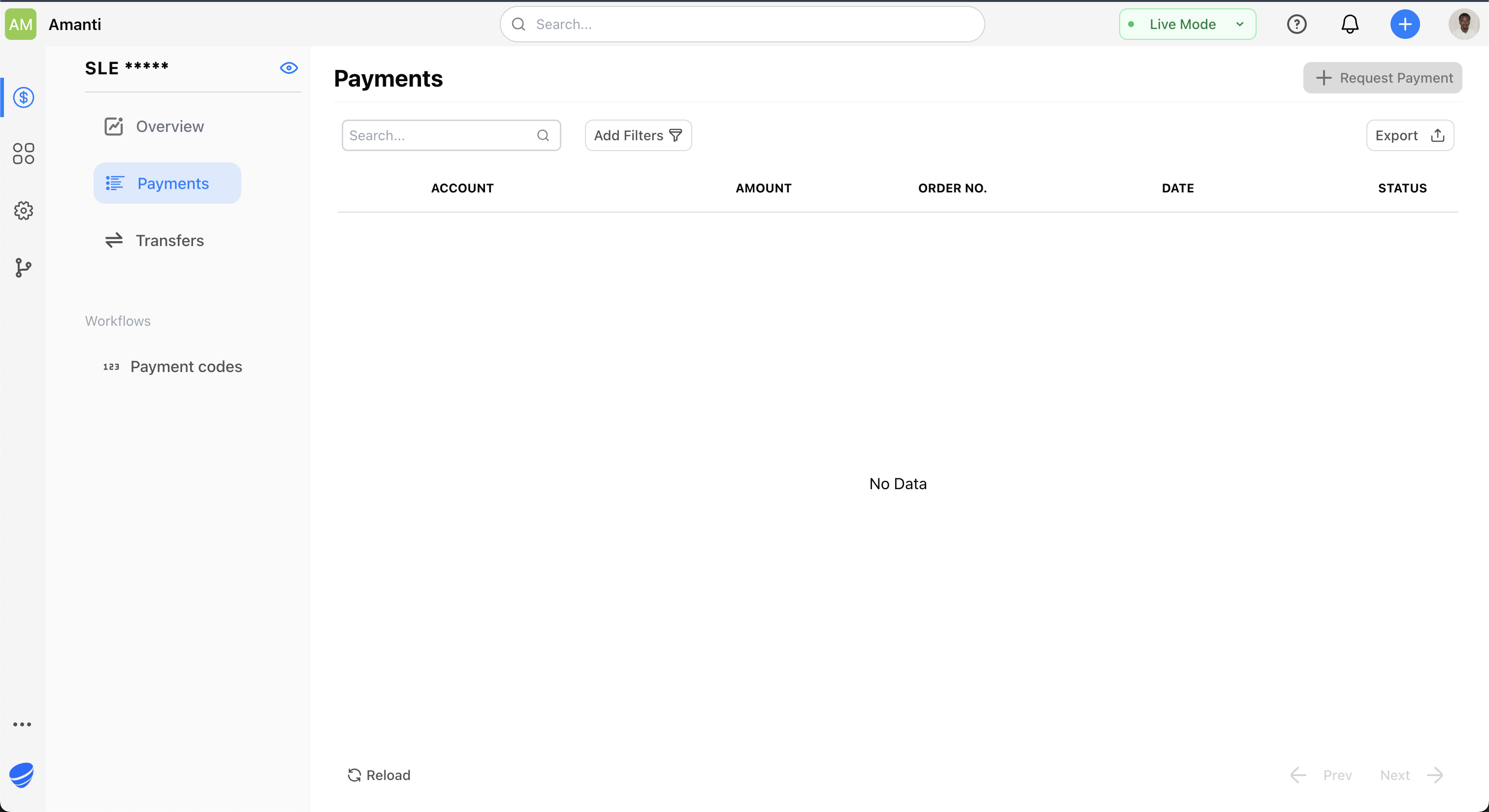 After setting your PIN, you'll be automatically redirected to your new Monime Space dashboard. The URL will incorporate your chosen alias:
`https://[your-alias].monime.space`
**Example**: If you chose 'kamara' as your alias, your Space dashboard URL would be `https://kamara.monime.space`
## Space Dashboard Features
From your Space dashboard, you can:
Set up payment methods and start accepting payments
View and manage all your business transactions
Configure your Space settings and preferences
## Next Steps
Your Monime Space is now ready! You can start accepting payments immediately or
integrate with your applications using our APIs.
Create access tokens for API integration
Explore our comprehensive API reference
Tools, documentation, and references to support your development work.
Learn about your Space dashboard features
After setting your PIN, you'll be automatically redirected to your new Monime Space dashboard. The URL will incorporate your chosen alias:
`https://[your-alias].monime.space`
**Example**: If you chose 'kamara' as your alias, your Space dashboard URL would be `https://kamara.monime.space`
## Space Dashboard Features
From your Space dashboard, you can:
Set up payment methods and start accepting payments
View and manage all your business transactions
Configure your Space settings and preferences
## Next Steps
Your Monime Space is now ready! You can start accepting payments immediately or
integrate with your applications using our APIs.
Create access tokens for API integration
Explore our comprehensive API reference
Tools, documentation, and references to support your development work.
Learn about your Space dashboard features