

Developer Resources · Webhooks
Monitoring and Debugging
Read the Event Deliveries table and delivery details, interpret statuses and HTTP codes, replay deliveries, and keep an eye on webhook health.
Every event Monime sends to a webhook appears in its Event Deliveries table, with whether it succeeded, failed or is waiting to retry. When something goes wrong, the delivery's details show exactly what happened, so you can fix it and replay.
Event Deliveries table
Open a webhook and scroll to Event Deliveries. The newest deliveries are at the top.
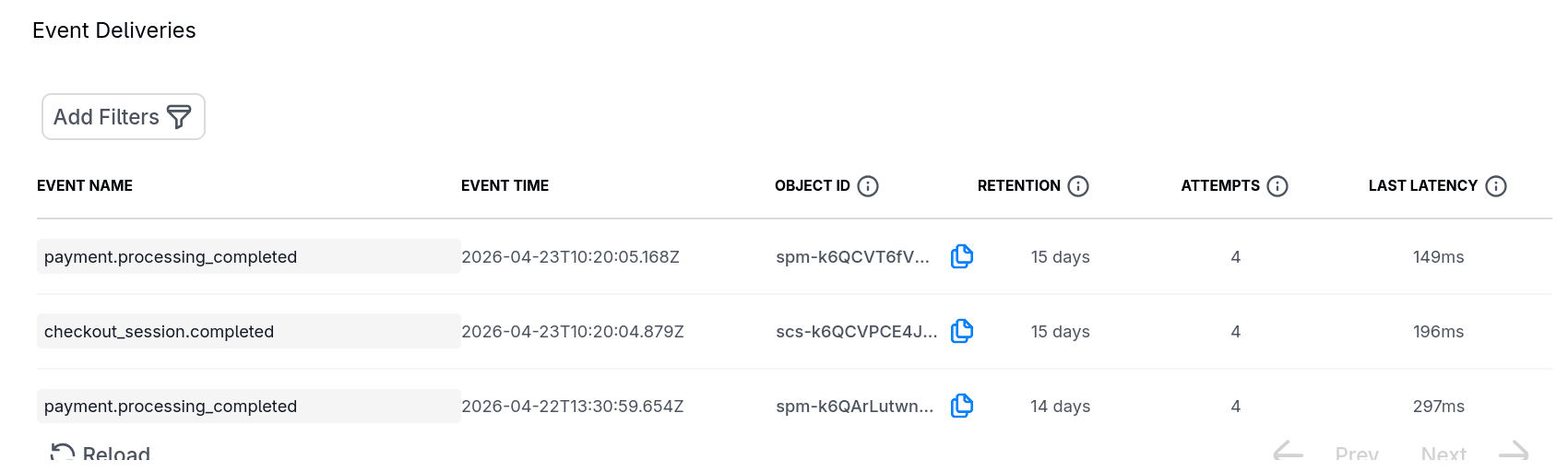
| Column | Description |
|---|---|
| Event name | Event that triggered the delivery |
| Event time | When the event occurred |
| Object ID | ID of the object that triggered the event |
| Retention | How long the log is kept |
| Attempts | Total delivery attempts |
| Last latency | Response time of the most recent attempt |
| Last HTTP code | HTTP status from the most recent attempt |
| Status | Where the delivery stands |
The table refreshes periodically while the webhook is active.
Delivery statuses
| Status | Meaning | What to do |
|---|---|---|
| Pending | Monime is about to send the first attempt; this usually lasts seconds | Nothing |
| Success | Your endpoint returned a 2xx | Nothing |
| Scheduled | An attempt failed and a retry is queued | Nothing, unless it keeps failing; a few during a deployment are normal |
| Failed | Retries are exhausted, or the retry window ended | Fix the cause, then replay |
Watch Scheduled and Failed. Many Failed deliveries point to a persistent problem. See Delivery and retries for how retries are scheduled.
Filter deliveries
Use the filters above the table to narrow the list: to Failed while debugging, or to Success to confirm a fix.
| Filter | Type | Description |
|---|---|---|
| Timestamp | Date range | When the event occurred |
| Status | Preset | Success, Failed, Scheduled |
| Event | Custom | Event name |
| Object ID | Custom | ID of the triggering object |
| Latency | Custom | Minimum latency (ms) |
Delivery detail sheet
Click a row to open its details:
- Status, event name and event time
- Source object ID and retention TTL
- Total attempts, and the last attempt's status and latency
- Next retry attempt at (if scheduled), and when the retry window ends
- The request payload: the full JSON body Monime sent
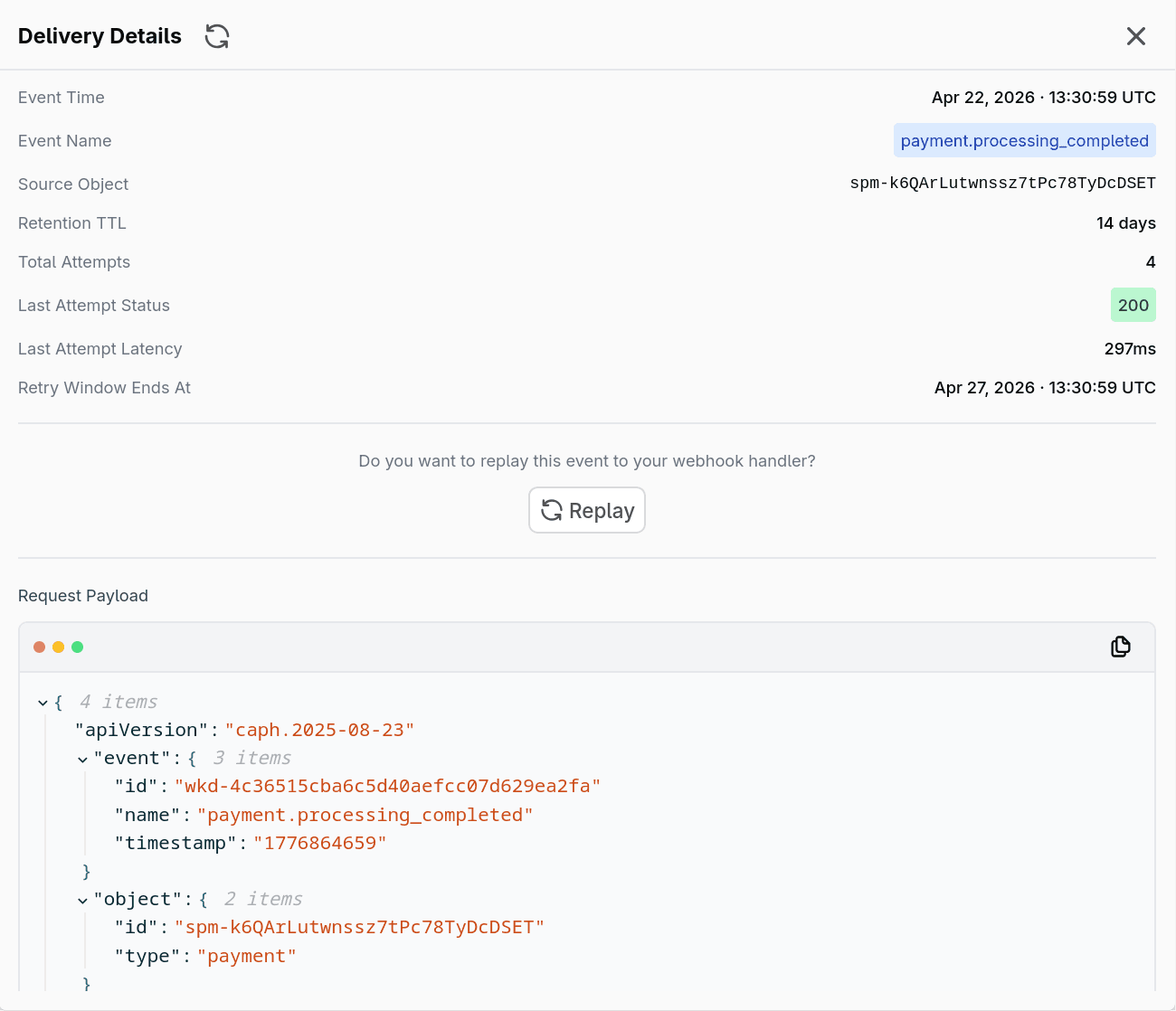
Use the payload to inspect the event data, debug parsing or validation errors, and confirm the structure matches what your code expects.
Interpret HTTP codes
| Code | Meaning | Common cause |
|---|---|---|
| 2xx | Success | Endpoint processed the event |
| 400 or 422 | Rejected payload | Validation failed, often an API release your code doesn't expect |
| 401 | Unauthorized | Signature verification or authentication failed |
| 403 | Forbidden | Authenticated but access denied |
| 404 | Not Found | Wrong URL or path |
| 500 | Server error | A bug or unhandled exception; check your logs at that time |
| 502 or 503 | Bad gateway or unavailable | A proxy or load balancer can't reach your application |
| 504 or a timeout | Too slow | Your handler takes too long; acknowledge first and process in the background |
A timeout can mean the request never arrived (a network problem), arrived but got no answer (your app crashed or hung), or was answered too late. Your server's logs tell you which.
For a 401 with HMAC-SHA256, make sure you compute the signature over the raw request body, not a parsed and re-serialised one. See Verification and security.
Replay
After you fix the cause of a failure, replay the delivery. For completed deliveries (Success or Failed), open the detail sheet and click Replay.
- Replay creates a new delivery with the same payload and a new event ID, and sends it again.
- The payload is exactly as originally sent, in the original API release's format.
- Replay is disabled while the webhook is disabled. After a successful replay, wait about 30 seconds before replaying again.
Replay is useful when your endpoint was down and missed events, or when a bug caused failures and you've deployed a fix. Don't replay events you've already processed some other way: design your handler to be idempotent, but avoid creating duplicates on purpose.
A debugging routine
- Filter to Failed and open a delivery.
- Check Last HTTP code: 4xx means your endpoint rejected it, 5xx means it errored.
- Check Last latency for timeouts.
- Inspect the payload.
- Fix your endpoint, then replay to confirm the fix.
Keep an eye on health
- Check the table after every deployment of your endpoint: a spike in Failed deliveries needs attention.
- Act on alert emails. A few transient failures are normal; repeated ones mean events aren't reaching your systems.
- For earlier warning, monitor your endpoint's own error rate and latency too.
Retention
Delivery logs are kept for a limited time, shown as each delivery's retention TTL. Copy anything you need before it expires. After that, fetch the resource's current state through the API to reconcile.