

Products · USSD Flows
Getting Started
Create, test and publish your first USSD flow in the Monime dashboard.
Before You Start
- Your Space needs Developer Mode. If the Developer section shows Enable Developer Mode, turn it on. You can't turn it off again.
- You need access to the Developer section. If USSD Flows is missing from the Developer menu, ask your Space admin.
Create and Publish a Flow
Open USSD Flows
Go to Developer → USSD Flows. The table lists every flow in your Space.
Create the flow
Click Create Flow, enter a name and click Create. Names are 2 to 100 characters. You can't rename a flow yet, so use a clear name such as "Bo School Fees" or "Kenema Market Dues". See naming flows for ideas.
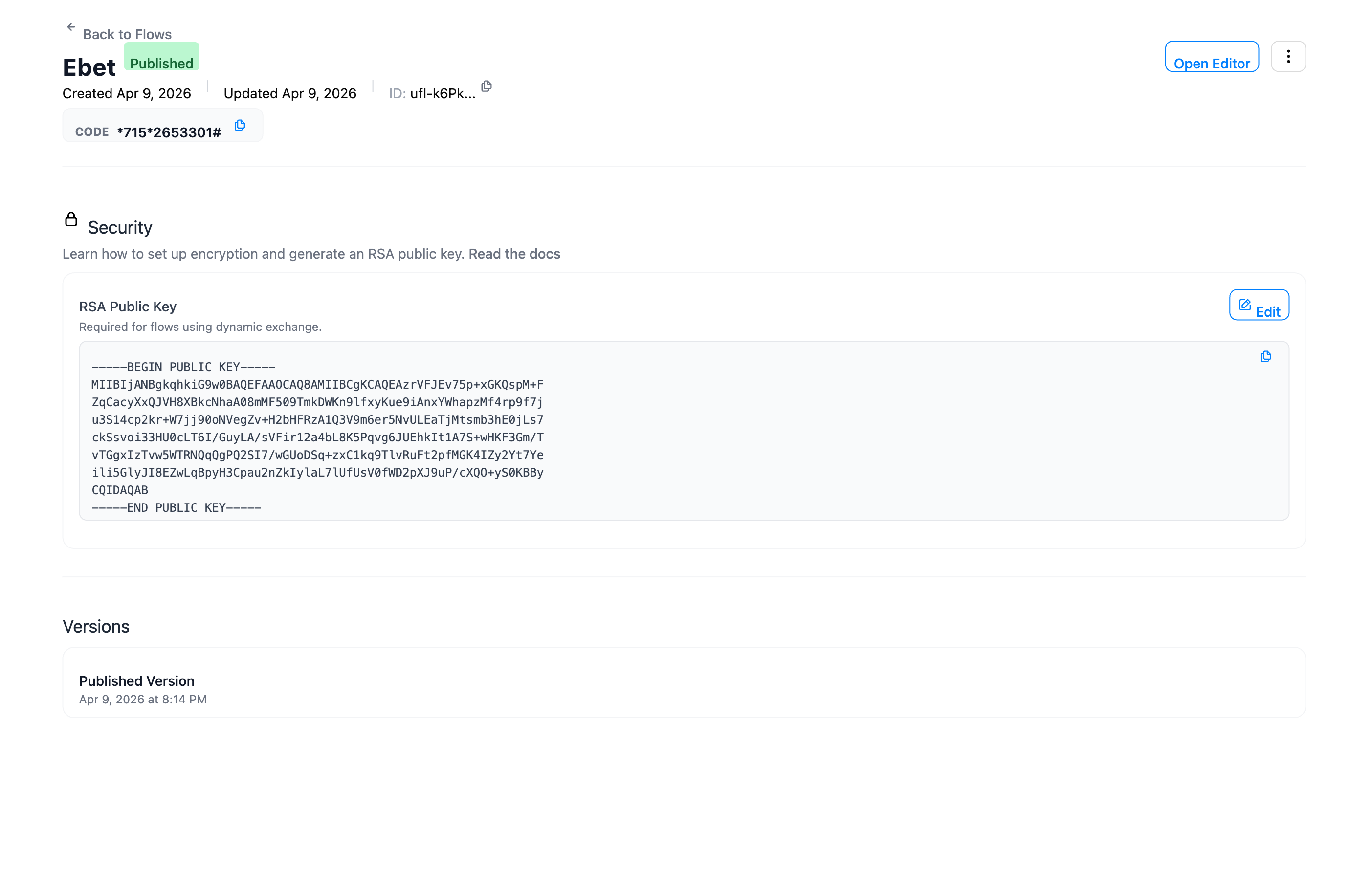
Monime gives the flow its own 7-digit code, such as *715*1234567#, and opens the flow's page.
Open the editor
Click Open Editor. The editor opens with the example flow: a yes or no question, a month, a menu and a thank-you screen. The Simulator opens beside it.
Write your first page
Replace the example with a single page:
{
  "version": "1.0",
  "pages": [
    {
      "id": "welcome",
      "component": {
        "type": "display",
        "label": "Welcome to Kamara Pharmacy, Bo. We are open 8am to 8pm, Monday to Saturday."
      }
    }
  ]
}
The editor checks your JSON as you type. Mistakes are underlined in red and the status reads "Invalid JSON". Hover over a red line to see what's wrong.

Save
The editor saves your draft 5 seconds after you stop typing. To save now, press Ctrl+S (Cmd+S on Mac). Wait until the status reads "Changes saved".
Test in the Simulator
In the Simulator, press Start. Your saved draft runs like a real USSD session. Type your answers and press Run Again to start over.
Publish
Click Publish, then confirm. Your saved draft replaces the live version, and new sessions get it straight away.
Dial the code
Close the editor. The flow's page shows the Code, and the Short Code if you have one. Dial it from an Orange or Africell phone to check the live flow.
A Longer Example
This flow signs up a young person for a youth fund. It asks for a name and an age, then shows a summary.
{
  "version": "1.0",
  "pages": [
    {
      "id": "ask_name",
      "component": {
        "type": "prompt",
        "label": "Welcome to the Makeni Youth Fund. Enter your name:",
        "data_type": "text",
        "max_length": 30,
        "max_invalid_input_attempts": 3
      }
    },
    {
      "id": "ask_age",
      "component": {
        "type": "prompt",
        "label": "Thank you, $(page.ask_name.value). Enter your age:",
        "data_type": "integer",
        "min_value": 18,
        "max_value": 35,
        "max_invalid_input_attempts": 3
      }
    },
    {
      "id": "confirm",
      "component": {
        "type": "display",
        "label": "Thank you, $(page.ask_name.value). You are signed up, age $(page.ask_age.value)."
      }
    }
  ]
}
The first page takes a name of up to 30 characters. The second takes a whole number from 18 to 35. max_invalid_input_attempts limits how many wrong answers a caller can give. The last page shows both answers and ends the session.
$(page.ask_name.value) puts the answer from the ask_name page into a later screen. See Variables for everything you can use.
Common Mistakes
- Sharing the code too early. A new flow is live with the example flow. Publish your own flow first.
- Saving but not publishing. Callers only see what you publish.
- Reusing a page
id. Every page needs its ownid, because variables use it to find an answer. - Long screens. Phones show at most 130 characters of a label, after variables are filled in, and 64 for a menu item. The rest is cut off.
The full rules for pages and fields are in the Flow Definition.
Next Steps
- Editing & Publishing: the editor, the Simulator, drafts and publishing
- Managing Flows: disable, enable, name and organise flows
- Flow Definition: every page type and its options
- Variables: use
$(page...),$(session...)and$(data...)