

Products · USSD Flows
Managing Flows
Find your USSD flows, switch them off and on, and keep them organised.
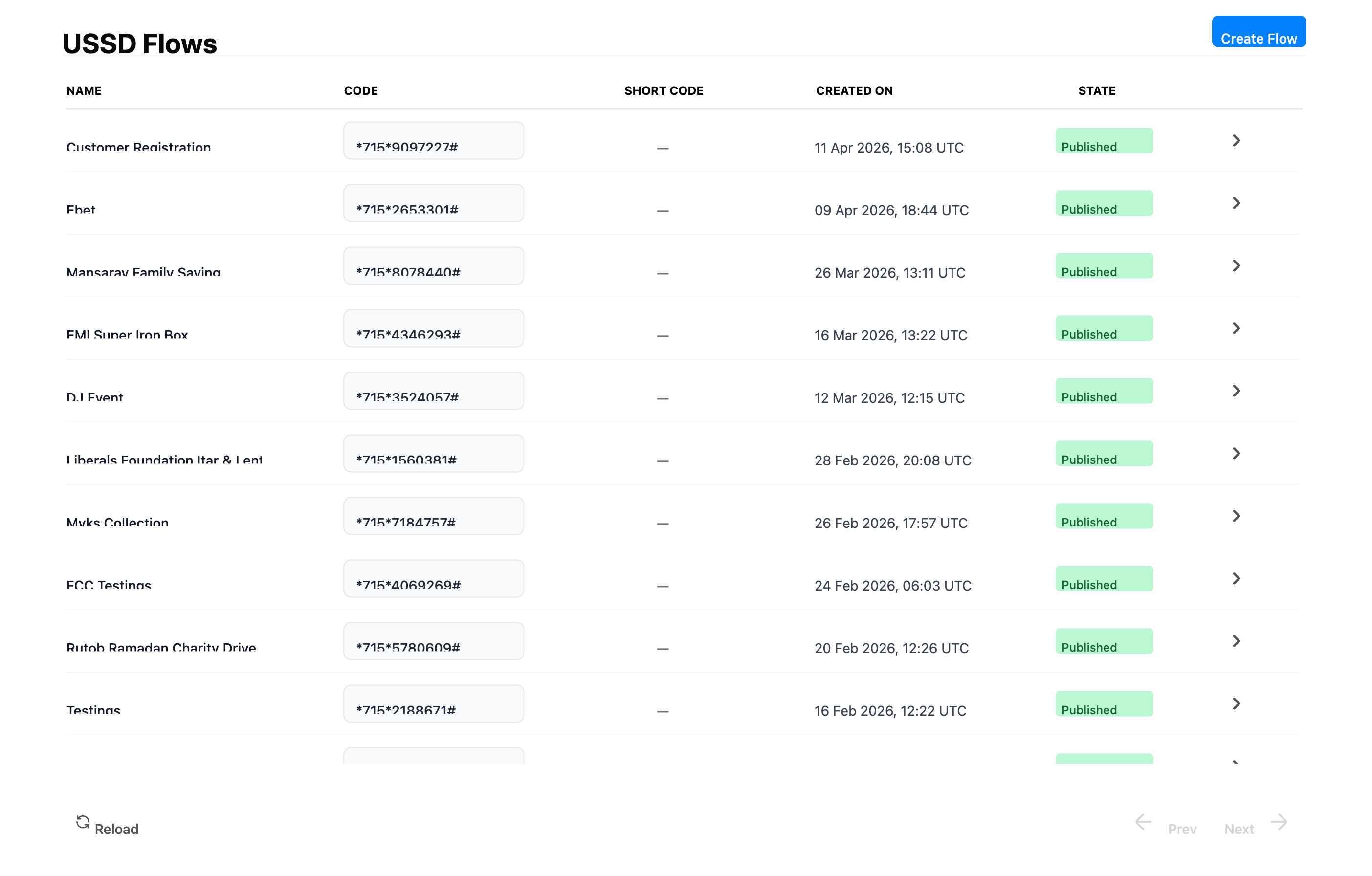
The Flow List
Go to Developer → USSD Flows to see every flow in your Space.
| Column | Shows |
|---|---|
| Name | The name you gave the flow |
| Code | The flow's USSD code, such as *715*1234567# |
| Short Code | The short code, such as *715*600#, or a dash if it has none |
| Created On | When the flow was created |
| State | Published (green), Draft (yellow) or Disabled (red) |
Click a code to copy it. Click a row to open the flow's page.
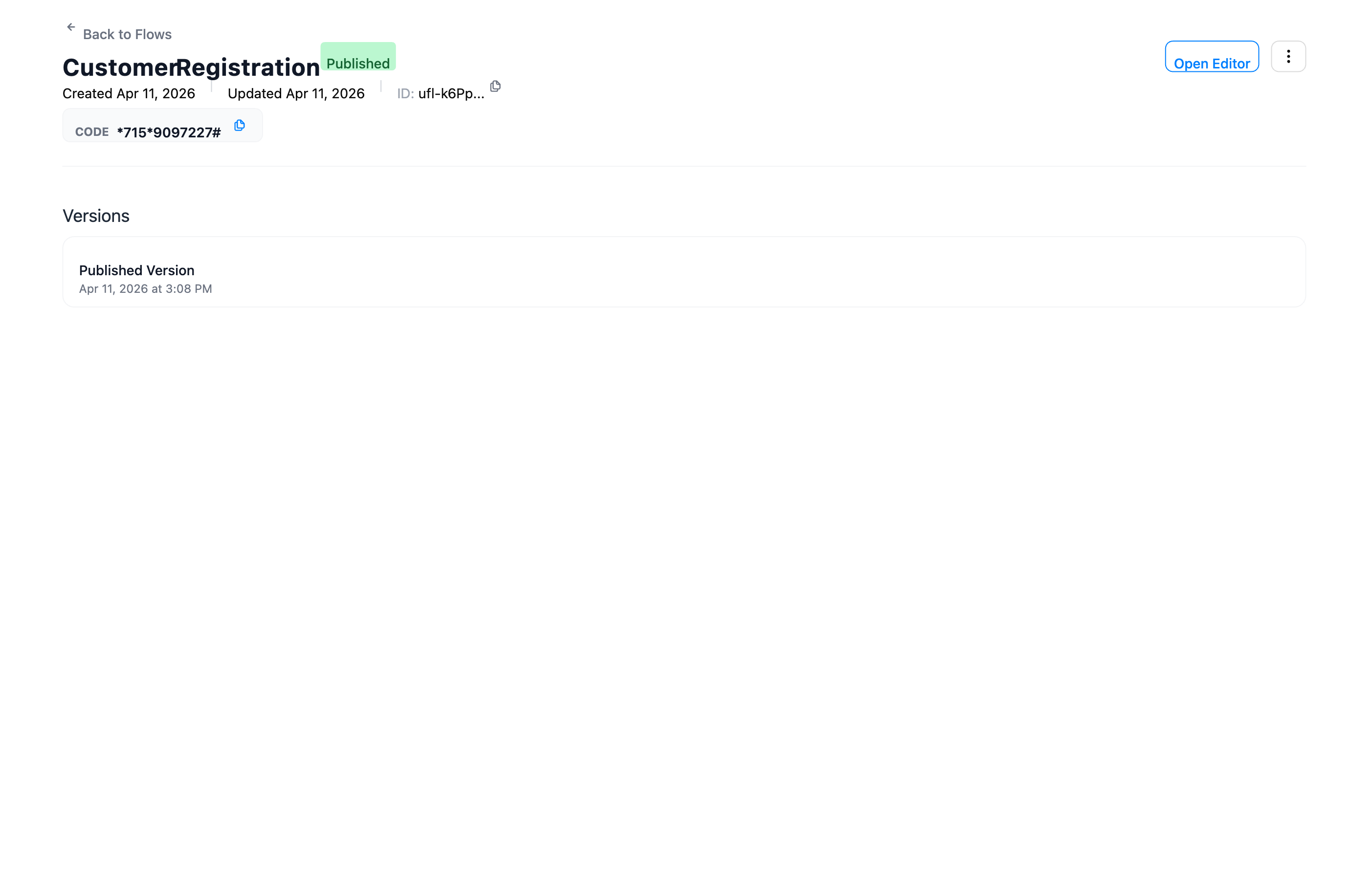
The Flow's Page
The top of the page shows the flow's name, a Published or Draft tag, when it was created and last updated, its ID, and its codes. Each has a copy button. The flow list is the place to check whether a flow is disabled.
On the right are Open Editor, Publish Draft (when there is a saved draft) and a ⋮ menu to disable or enable the flow.
If the flow calls your server, a Security section follows. See Flow Security.
Versions shows the live version and, if you have one, your unpublished draft, each with when it last changed. Publishing clears the draft, so after a publish only the live version is listed.

Flow States
| State | Meaning |
|---|---|
| Published | Live. Callers who dial the code get the published version. You can edit a draft at the same time without changing what callers see. |
| Draft | Not live yet. |
| Disabled | Switched off. New sessions can't start. |
A new flow is Published straight away, with an example flow. Replace it before you share the code. See Getting Started.
Disabling and Enabling a Flow
To switch a flow off, open its page, open the ⋮ menu, select Disable Flow and confirm. New sessions stop straight away, and callers who dial the code no longer reach the flow.
To switch it back on, select Enable Flow in the same menu and confirm Publish. Enabling publishes the flow. If you have a saved draft, the draft goes live. If you don't, the last live version comes back.
You can't delete a flow. Disable the flows you no longer need. They stay in the list and you can enable them again at any time.
Naming and Organising Flows
Give each flow a name that says what it does, because you can't rename it later. Names are 2 to 100 characters. For example:
- By what it does: "Bo School Fees", "Kenema Market Dues", "Meter Top-up"
- By who uses it: "Agent Menu", "Customer Self-Service"
Use one flow per service. Each flow has its own code, its own draft and live version, and can be switched off on its own. If two services sit under one main menu, they can share a flow. If you have many small flows, think about joining them under one menu.
Make a new flow when you need a new service or a different code. Edit the existing flow to add pages, change wording or rules, or fix a mistake.
To try out big changes without touching the live flow, use the Simulator, or keep a separate test flow such as "Bo School Fees (test)".